GIFs are often the wrong size. Too big for a chat sticker, too wide for a web banner, too small to see on mobile. GifNeo’s GIF resizer lets you set exact width and height — or use a percentage scale — right in your browser. No uploads, no server, instant preview.
Why Resize a GIF?
- Fit platform requirements: WeChat stickers are 240×240, Discord emojis are 128×128, Twitter header is 1500×500 — resizing to the exact spec avoids awkward cropping or stretching
- Reduce file size: A 1920×1080 GIF scaled down to 480×270 is roughly 75% smaller in file size, without any quality loss on the original pixels
- Mobile optimization: Full-resolution GIFs look tiny on phone screens. Resize to match the display size and save bandwidth for your visitors
- Consistent layout: Web pages with mixed-size GIFs look messy. Resize everything to a uniform width and your layout stays clean
How to Resize a GIF with GifNeo
Step 1: Open the Resizer
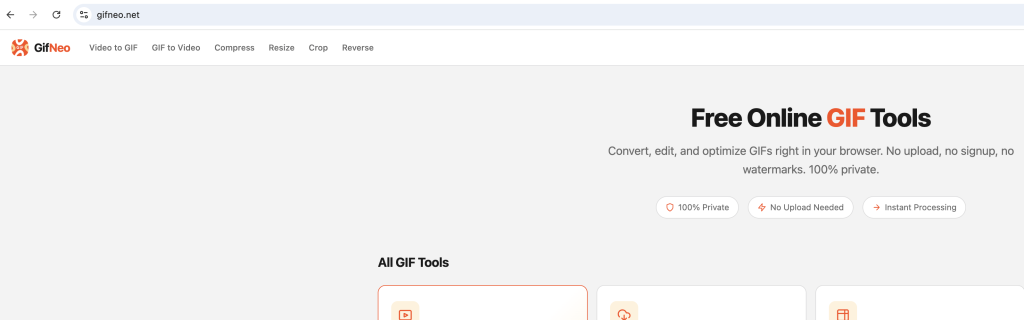
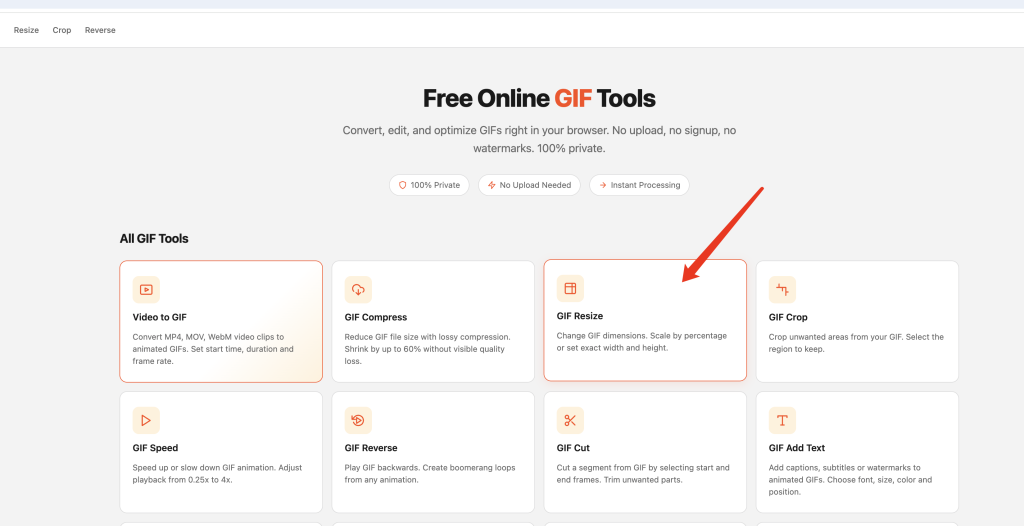
Go to GifNeo GIF Resizer. No signup needed.
Step 2: Upload Your GIF
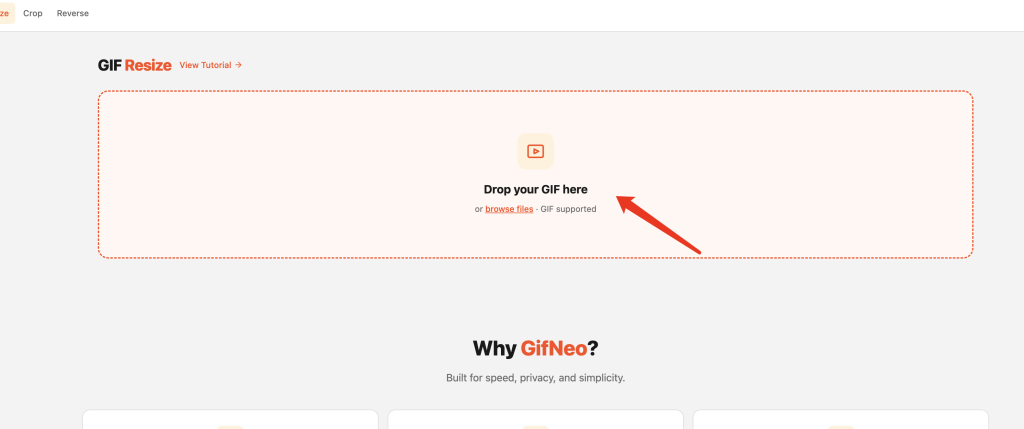
Click the upload area or drag and drop a GIF file. The tool immediately shows the original dimensions and file size.
Step 3: Set the New Dimensions
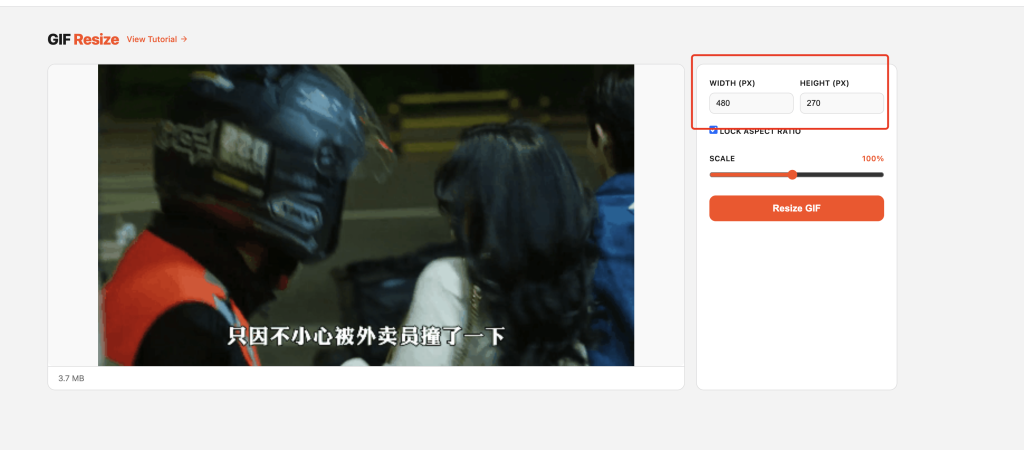
Two ways to resize — pick whichever fits your workflow:
Width & Height (Exact Pixels)
- Enter your target width and height directly (10–2000px each)
- The aspect ratio lock is on by default — change one dimension and the other updates automatically to keep proportions
- Uncheck “Lock aspect ratio” if you need to stretch or squeeze the GIF to a specific size
- Great for hitting exact platform requirements
Scale Percentage (10%–200%)
- Drag the scale slider to resize proportionally
- 50% halves both width and height — file size drops roughly 75%
- 200% doubles the dimensions (upscaling) — useful for small GIFs that need to fill a larger space
- This is the fastest way to shrink or enlarge without thinking about exact numbers
Step 4: Preview the Result
The tool shows the new dimensions before you process. Confirm everything looks right.
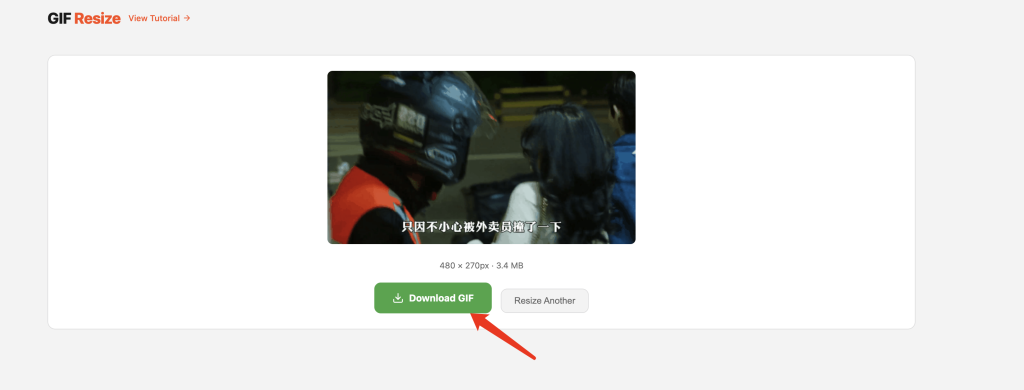
Step 5: Download the Resized GIF
Click “Download” to save. The filename automatically adds a -resized suffix.
Common Resize Scenarios
GIF for Chat Stickers
Most chat platforms want square stickers around 240×240. If your source GIF is wider, resize width to 240 with lock ratio on — the height will adjust automatically. Then use the Crop GIF tool to trim to a perfect square.
GIF for Web Pages
Web GIFs should match their display width. A GIF shown at 600px wide in your article doesn’t need to be 1920px. Resize to 600px wide (lock ratio on) and the file shrinks dramatically.
GIF for Social Media
- Twitter/X post image: max 1600×900 — resize to 1200×675 for optimal quality
- Instagram story: 1080×1920 — resize and crop
- WeChat sticker: 240×240 — resize and crop to square
- Discord emoji: 128×128 — resize down small
Upscaling Small GIFs
Need a 100×100 GIF to fill a 300×300 space? Set scale to 300%. Note: upscaling GIFs doesn’t add detail — it stretches existing pixels. The result will look softer or pixelated depending on the interpolation method.
FAQ
Will resizing affect GIF animation?
No. GifNeo processes every frame of the GIF. Frame count, loop behavior, and frame delays all stay exactly the same. Only the pixel dimensions change.
Does the aspect ratio lock actually work?
Yes. When “Lock aspect ratio” is checked, changing the width automatically calculates the correct height (and vice versa). This prevents your GIF from looking stretched or squished. Uncheck it only if you intentionally want to change the proportions.
Can I make a GIF bigger with this tool?
Yes. The scale slider goes up to 200%, and you can manually enter any width/height up to 2000px. Keep in mind that upscaling doesn’t add detail — it enlarges existing pixels.
What’s the maximum size I can resize to?
2000×2000 pixels. For most use cases this is more than enough. If you need larger dimensions, consider converting to video format first.
Does resizing reduce file size?
Downscaling almost always reduces file size significantly. A 1920×1080 GIF resized to 480×270 typically becomes 70–80% smaller. Upscaling may slightly increase file size.
Can I resize multiple GIFs at once?
The current version processes one file at a time. For batch resizing, process files individually.
More GIF Tools
- Compress GIF – Reduce GIF file size without losing quality
- Cut GIF – Trim GIF to a specific time range
- Speed GIF – Speed up or slow down GIF playback
- Images to GIF – Combine multiple images into one GIF
- Reverse GIF – Play GIF frames backward
- Rotate GIF – Rotate GIF 90°/180°/270°
- Crop GIF – Crop GIF to a custom area
- Video to GIF – Extract a clip from video as GIF
- Add Text to GIF – Overlay text captions on GIF frames
- Split GIF – Extract individual frames from a GIF
- GIF to Video – Convert GIF animation to MP4/WebM video