GIF files blow up fast. A 10-second screen recording can easily hit 20MB. Most messaging apps, email attachments, and social platforms reject anything over a few MB. GifNeo’s GIF compressor shrinks your files right in the browser — no uploads, no server, instant results.
Why Compress GIF Files?
- Beat upload limits: WeChat caps images at 5MB, email attachments at 25MB, Discord at 8MB without Nitro — compressed GIFs pass all of these
- Faster web pages: Animated GIFs are often the biggest files on a page. Cutting them from 10MB to 500KB makes your site load dramatically faster
- Save storage: Phone storage filling up? Batch compress your GIF collection and reclaim gigabytes
- Better sharing: Compressed GIFs load faster in messages, emails, and social posts — no more “file too large” errors
How to Compress GIF Files with GifNeo
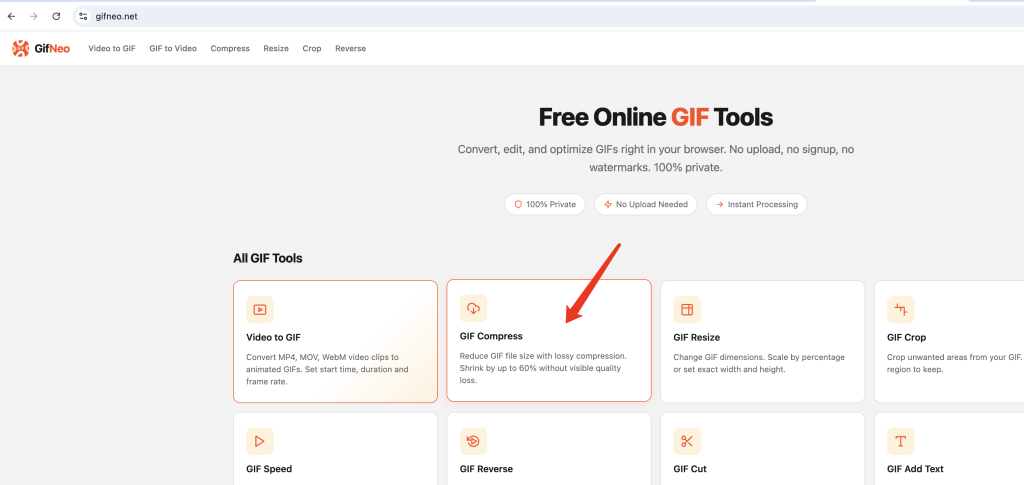
Step 1: Open the Compressor
Go to GifNeo GIF Compressor. No signup, no limits.
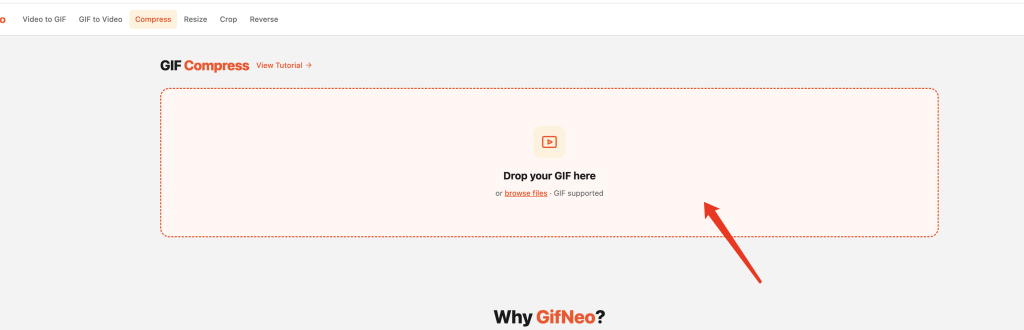
Step 2: Upload Your GIF
Click the upload area or drag and drop a GIF file directly. The tool shows the original file size immediately.
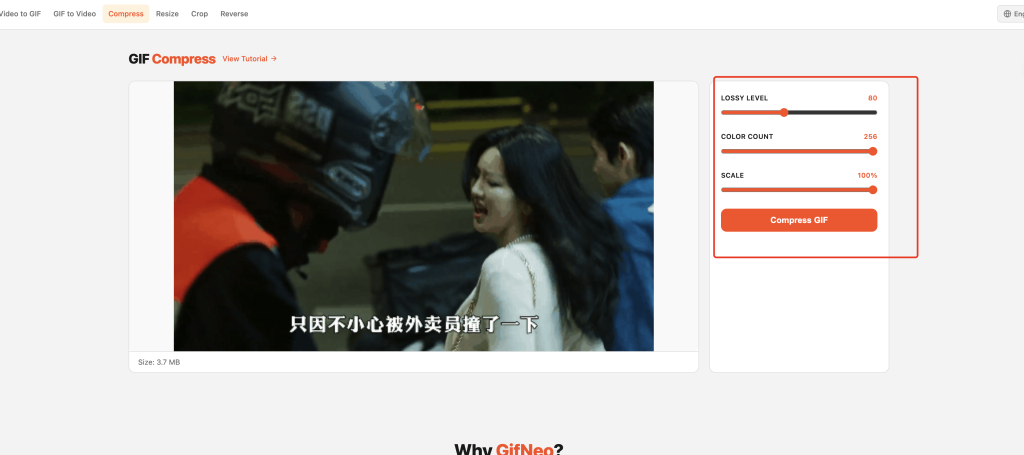
Step 3: Adjust Compression Settings
Three sliders give you fine control over the output:
Lossy (1–200, default 80)
- Controls the core compression algorithm
- Higher values = more compression, more quality loss
- 80–120 is the sweet spot for most GIFs — visible quality is nearly identical
- For simple graphics and icons, you can push it to 150–200
Colors (2–256, default 256)
- Reduces the color palette
- Most GIFs don’t need 256 colors — 128 or 64 still looks good for most content
- Fewer colors = significantly smaller files
- For simple logos or icons, dropping to 32–64 colors delivers massive savings
Scale (50%–100%, default 100%)
- Resizes the GIF dimensions
- 50% cuts both width and height in half — file size drops roughly 75%
- Ideal for GIFs that are displayed small (chat stickers, comment reactions)
- Keep at 100% if you need the original resolution
Step 4: Preview and Compare
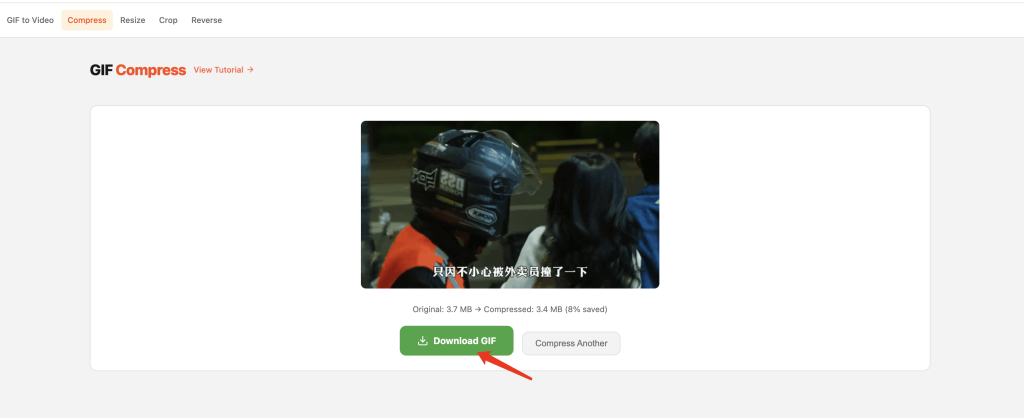
After compression, the tool shows the original vs compressed size. Verify the animation still looks acceptable before downloading.
Step 5: Download the Compressed GIF
Click “Download” to save the compressed file. The filename automatically adds a -compressed suffix.
Compression Tips by GIF Type
Screen Recordings
Screen recordings are the biggest GIF offenders. They have hundreds of frames at full resolution. Best approach: scale to 50–70%, reduce colors to 128, and set lossy to 100–150. A 20MB screen recording GIF often compresses to 1–3MB.
Animated Memes
Memes usually have simple graphics with flat colors. Reducing colors to 64–128 gives big savings without visible degradation. Keep scale at 100% unless the meme is displayed small.
Product Demos and UI Animations
These often have large solid-color areas. Lossy 80–100 works well. Colors can drop to 64–128 since UI elements typically use limited palettes.
Photo-based GIFs
GIFs made from photos have complex color data. Reducing colors aggressively (below 64) will look bad. Stick with 128–256 colors, and use lossy 80–120 for the best balance.
FAQ
Why is my GIF still large after compression?
Some GIFs are inherently hard to compress — those with many frames, high resolution, and complex motion. Try combining all three techniques: reduce scale to 70%, colors to 64, and increase lossy to 150. If it’s still too large, consider converting to video format.
Does GIF compression affect animation quality?
Yes — higher lossy values and lower color counts will reduce visual quality. The key is finding the balance. Start with lossy 80 and colors 128, then preview. Adjust upward if quality is unacceptable.
Can I compress GIFs on my phone?
Yes. GifNeo runs entirely in your browser — works on Chrome, Safari, and Firefox for both iOS and Android.
Is there a file size limit?
No hard limit. However, very large GIFs (50MB+) may consume significant memory during processing. For extremely large files, consider splitting them first using the Split GIF tool.
Will the compressed GIF loop correctly?
Yes. GifNeo preserves the original frame count, loop count, and frame delays. Only the visual quality and dimensions change.
Is the compression lossless?
No. GIF compression is inherently lossy — it reduces colors, simplifies frames, or resizes. Always keep your original file.
More GIF Tools
- Resize GIF – Change GIF dimensions precisely
- Cut GIF – Trim GIF to a specific time range
- Speed GIF – Speed up or slow down GIF playback
- Images to GIF – Combine multiple images into one GIF
- Reverse GIF – Play GIF frames backward
- Rotate GIF – Rotate GIF 90°/180°/270°
- Crop GIF – Crop GIF to a custom area
- Video to GIF – Extract a clip from video as GIF
- Add Text to GIF – Overlay text captions on GIF frames
- Split GIF – Extract individual frames from a GIF
- GIF to Video – Convert GIF animation to MP4/WebM video