Want to add a caption, reaction text, or watermark to a GIF? You don’t need After Effects or Photoshop. Adding text to a GIF is dead simple — upload, type, position, download.
Why Add Text to a GIF?
Text turns a regular GIF into a meme, a reaction, a tutorial, or a branded asset. Here are some of the most common uses:
- Make memes and reaction GIFs: Add punchlines, captions, or dialogue to turn any clip into shareable content
- Add watermarks or branding: Put your logo or username on GIFs you share so people know they came from you
- Create tutorial GIFs: Add step-by-step instructions or labels to show how something works
- Highlight key moments: Draw attention to specific parts of the animation with callouts or arrows… well, text at least
- Subtitle GIFs: Add subtitles so people can follow along without sound (which is most people, honestly)
How to Add Text to a GIF in 3 Steps
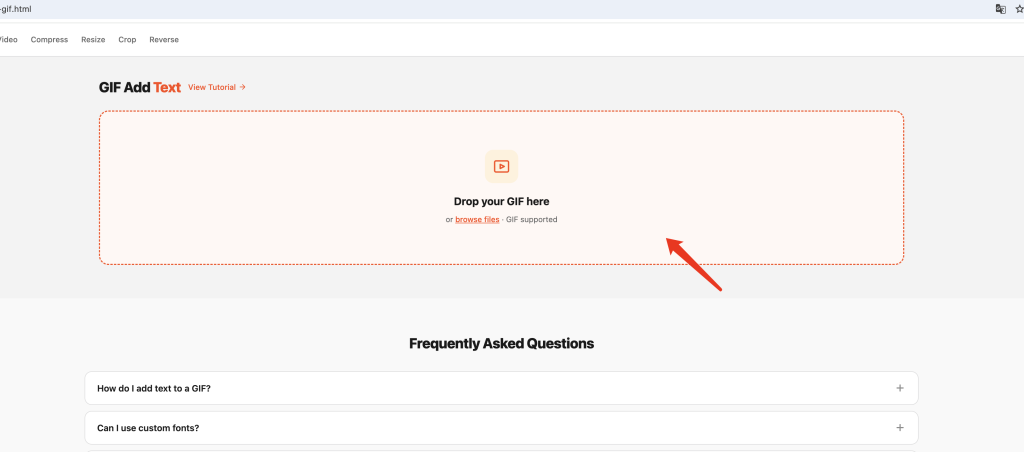
Step 1: Upload Your GIF
Go to the Add Text to GIF tool and drop your GIF onto the upload area, or click to browse for a file. Everything runs locally in your browser — nothing gets uploaded to any server.
Step 2: Add and Style Your Text
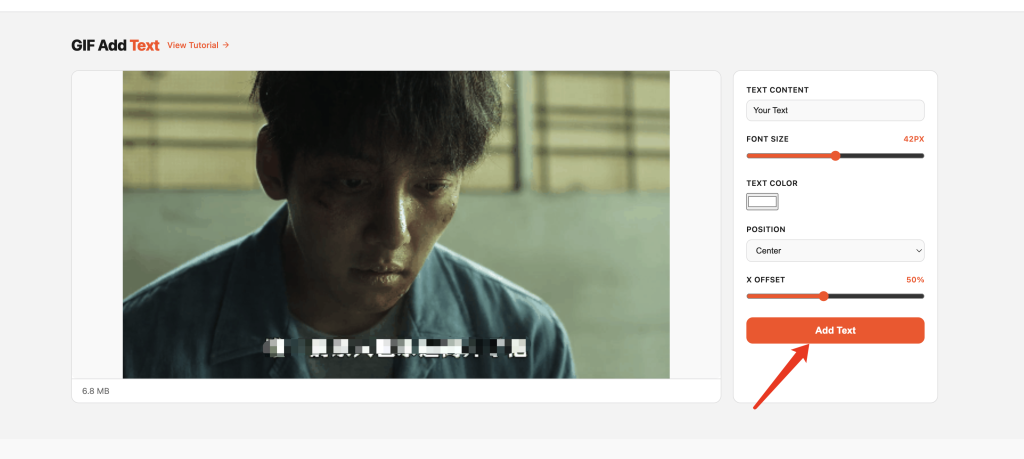
Type your text and tweak the settings:
- Text content — whatever you want the GIF to say
- Font — pick from our built-in selection of popular fonts
- Font size — adjust from tiny to huge, whatever fits
- Text color — any color you want
- Position — Top, Center, or Bottom, plus X offset for fine-tuning
- Opacity — make the text see-through or fully opaque
- Outline — add a text outline for better readability on busy backgrounds
You can add multiple text layers — each with its own font, size, color, and position.
Step 3: Click Add Text and Download
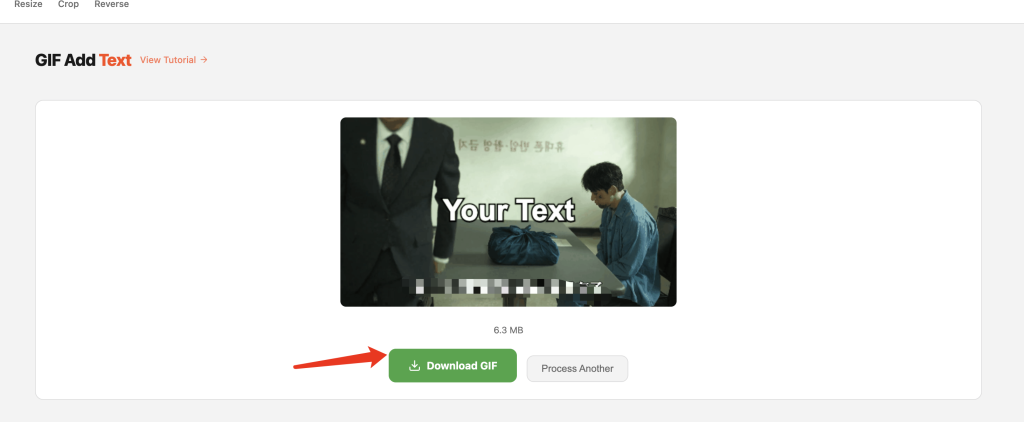
When you’re happy with how it looks, click Add Text. Once it renders, hit download and you’re done. No signup, no watermarks, no fine print.
Tips for Adding Text That’s Actually Readable
Nothing kills a GIF faster than text no one can read. Here’s how to make sure your text pops.
Add an outline or shadow. If your GIF has a busy or multi-colored background, solid text can get lost. A thick black outline (or white, depending on the text color) makes text readable no matter what’s behind it. When in doubt, add an outline.
Match font style to the vibe. A bold sans-serif works for most memes and reaction GIFs. A fancy script font looks good for aesthetic or romantic content. Monospace gives you that retro computer feel. Don’t use a hard-to-read font just because it looks cool — if people can’t read it in half a second, it’s doing nothing.
Keep it short. GIFs move fast. People don’t have time to read a paragraph. Stick to a few words per frame. If you need more text, consider using multiple GIFs or making a video instead.
Mind the position. Top or bottom text is classic for a reason — it doesn’t cover the action. Center works for full-screen text or quotes. Avoid putting text right where the main subject is.
FAQ
How do I add text to a GIF?
Upload your GIF, type your text, choose a font, size, and color, position it where you want, then click Add Text. That’s it.
Can I use my own custom fonts?
We have a selection of popular fonts built in — pick the one that fits your style best. Custom font upload is something we’re looking at for a future update.
Can the text appear only on certain frames?
Right now text appears on all frames. Frame-specific text is on our roadmap and might come in a future version.
Can I add multiple text layers?
Yes. Add as many text elements as you need, each with its own font, size, color, and position. Great for adding a title and a subtitle, or labeling different parts of the GIF.
Can I change text color and opacity?
Fully customizable. Pick any color, adjust opacity, and add an optional outline for better readability.
Will my GIF be uploaded anywhere?
No. All text rendering happens in your browser. Your files stay on your device.
Does it work on mobile?
Yes. The tool works on phones, tablets, and desktops — any modern browser will do.
More GIF Tools
- Resize GIF – Change GIF dimensions precisely
- Cut GIF – Trim GIF to a specific time range
- Speed GIF – Speed up or slow down GIF playback
- Images to GIF – Combine multiple images into one GIF
- Reverse GIF – Play GIF frames backward
- Rotate GIF – Rotate GIF 90°/180°/270°
- Crop GIF – Crop GIF to a custom area
- Video to GIF – Extract a clip from video as GIF
- Add Text to GIF – Overlay text captions on GIF frames
- Split GIF – Extract individual frames from a GIF
- GIF to Video – Convert GIF animation to MP4/WebM video