Got a GIF that’s too long? Or has a slow build-up before the good part? Trimming a GIF lets you cut out the boring bits and keep just the best part. No video editing software needed — just upload, drag, and cut.
Why Cut or Trim a GIF?
Most GIFs are better when they’re short. Here are some common reasons to trim one:
- Cut to the good part: Skip the slow intro and jump straight to the punchline or key moment
- Reduce file size: Fewer frames = smaller file. If a GIF is too big to share, trimming is the easiest fix
- Create a loopable clip: Isolate a single motion that loops perfectly, instead of a longer clip that doesn’t
- Remove unwanted frames: Cut out mistakes, pauses, or parts that don’t fit what you’re making
- Fit platform limits: Some websites and apps have GIF length limits — trim it down to fit
How to Cut a GIF in 3 Steps
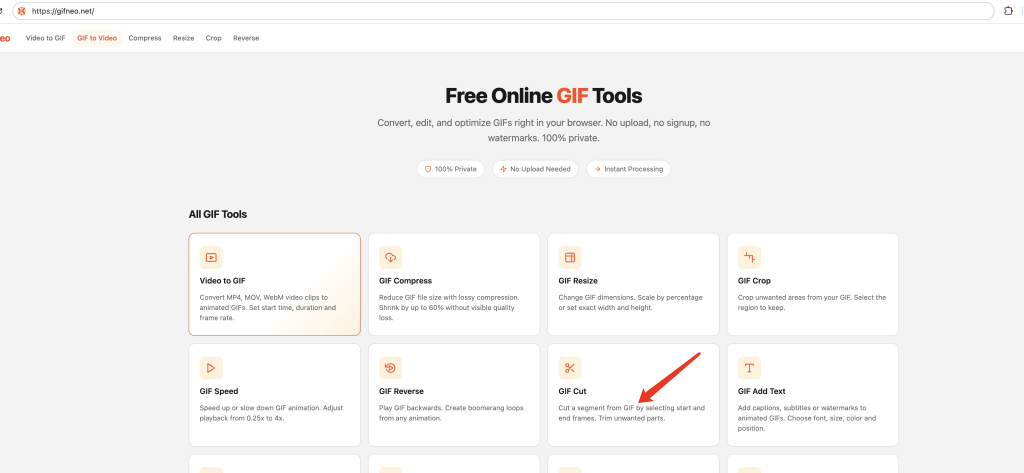
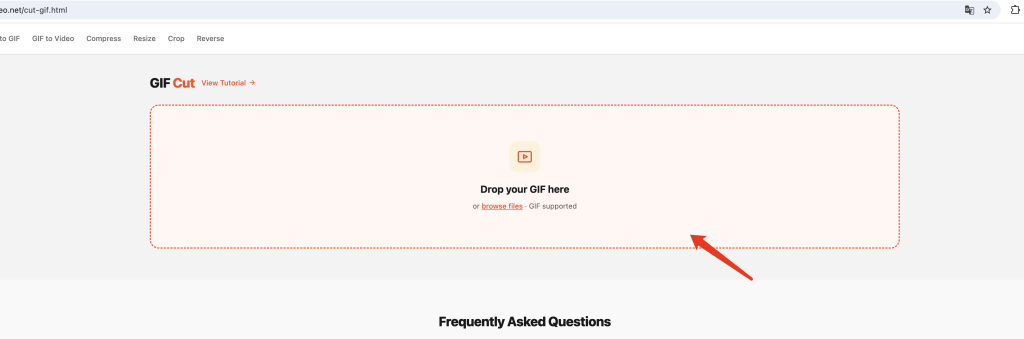
Step 1: Upload Your GIF
Go to the Cut GIF tool and drop your GIF onto the upload area, or click to browse for a file. Everything runs locally in your browser — nothing gets uploaded to any server.
Step 2: Select the Part You Want to Keep
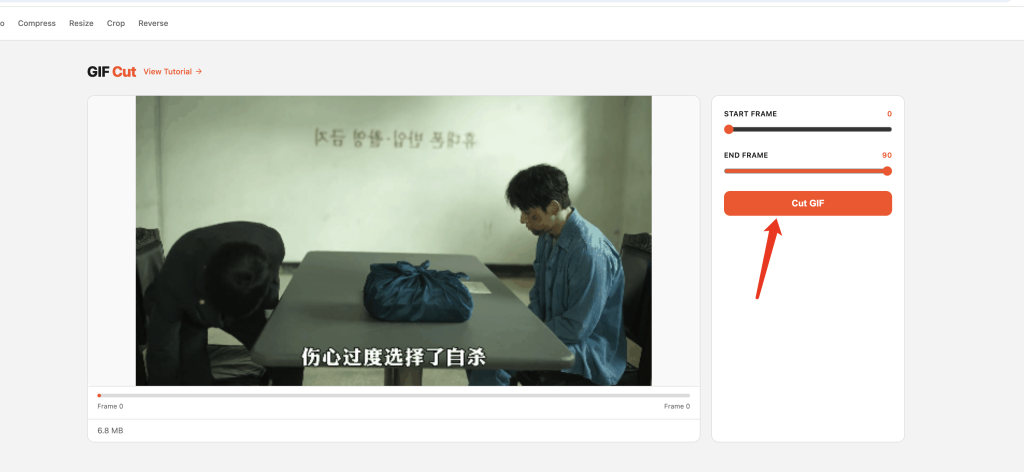
Use the timeline to choose which part of the GIF to keep:
- Drag the left handle to set where the clip starts (cuts from the beginning)
- Drag the right handle to set where the clip ends (cuts from the end)
- The preview plays the selected portion so you can see exactly what you’ll get
Adjust until the timing feels right.
Step 3: Click Cut and Download
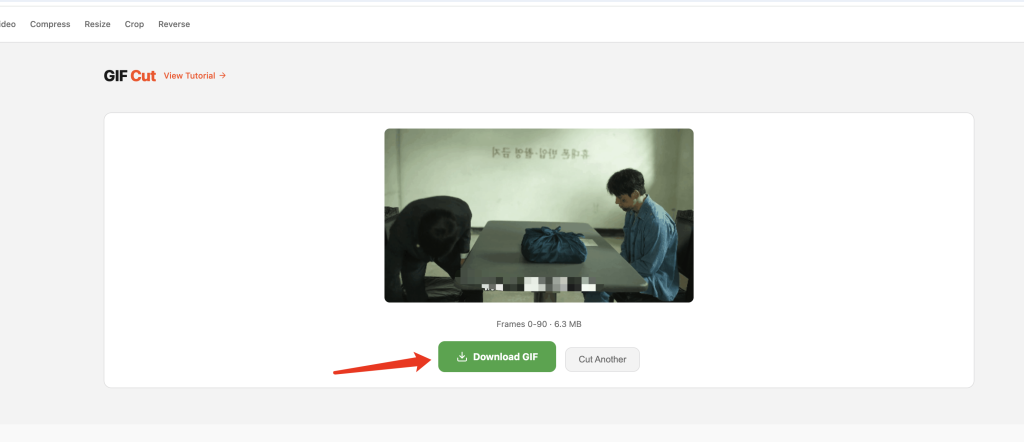
When you’re happy with the selection, click the Cut button. The tool will remove everything outside your selection and generate the trimmed GIF. Then just download it. Done.
Cut vs Crop vs Split: Which Tool Do You Need?
GifNeo has a few different tools that all “change” GIFs in some way. It’s easy to mix them up. Here’s how to tell which one you want:
Cut (trim) removes frames from the beginning or end of the GIF. The whole frame stays intact — you’re just making the animation shorter. Use this when the GIF is too long or you only want a specific segment.
Crop removes parts from the edges of the frame. The length stays the same, but the image gets smaller — like cutting a piece out of a photo. Use this when you want to focus on one area or remove something from the sides. You want our Crop GIF tool for that.
Split breaks the GIF into individual frame images — one file per frame. The GIF itself doesn’t change; you just get all the frames as separate PNGs or JPEGs. Use this when you want to edit individual frames, grab a single still image, or rearrange frames. That’s our Split GIF tool.
Quick cheat sheet:
- Too long → Cut
- Too tall/wide → Crop
- Need individual frames → Split
FAQ
How do you cut or trim a GIF?
Upload your GIF, use the timeline to select the part you want to keep, then click Cut. Everything outside the selection gets removed.
Can I cut from both the beginning and the end?
Yes. Drag the start and end handles on the timeline to trim both sides exactly where you want.
Does cutting reduce file size?
Yes! Fewer frames means a smaller file size. Trimming is one of the easiest ways to shrink a GIF that’s too big to share.
Can I preview before cutting?
Absolutely. The preview plays the selected portion so you can see exactly what you’ll get before you commit.
What’s the maximum GIF length?
There’s no strict limit, but very long GIFs (over 30 seconds) may take longer to process. Most GIFs people share are 3-10 seconds anyway.
Is my GIF uploaded anywhere?
No. All processing happens locally in your browser. Your files never leave your device.
Can I cut a GIF on my phone?
Yes. The tool works on any device with a browser — phones, tablets, desktops. Chrome, Safari, and Firefox are all supported.
More GIF Tools
- Resize GIF – Change GIF dimensions precisely
- Cut GIF – Trim GIF to a specific time range
- Speed GIF – Speed up or slow down GIF playback
- Images to GIF – Combine multiple images into one GIF
- Reverse GIF – Play GIF frames backward
- Rotate GIF – Rotate GIF 90°/180°/270°
- Crop GIF – Crop GIF to a custom area
- Video to GIF – Extract a clip from video as GIF
- Add Text to GIF – Overlay text captions on GIF frames
- Split GIF – Extract individual frames from a GIF
- GIF to Video – Convert GIF animation to MP4/WebM video