Want to turn a video clip into a shareable GIF? You don’t need Photoshop, After Effects, or any paid software. GifNeo’s free Video to GIF tool lets you convert MP4, MOV, WebM, and other video formats into high-quality animated GIFs right in your browser — no upload to a server, no signup, no watermarks.
The whole thing runs locally in your browser using JavaScript, so your videos never leave your device. That’s a big deal if you’re working with private or client content.
In this guide, I’ll show you exactly how to convert a video to a GIF in under a minute, plus a few tips to get the best quality at a reasonable file size.
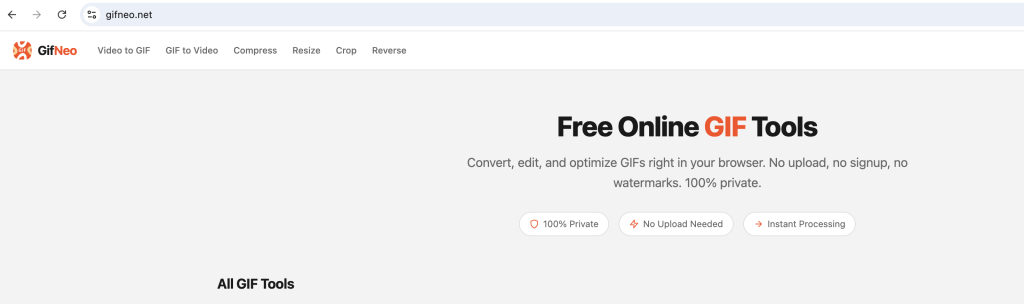
How to Convert Video to GIF in 3 Steps
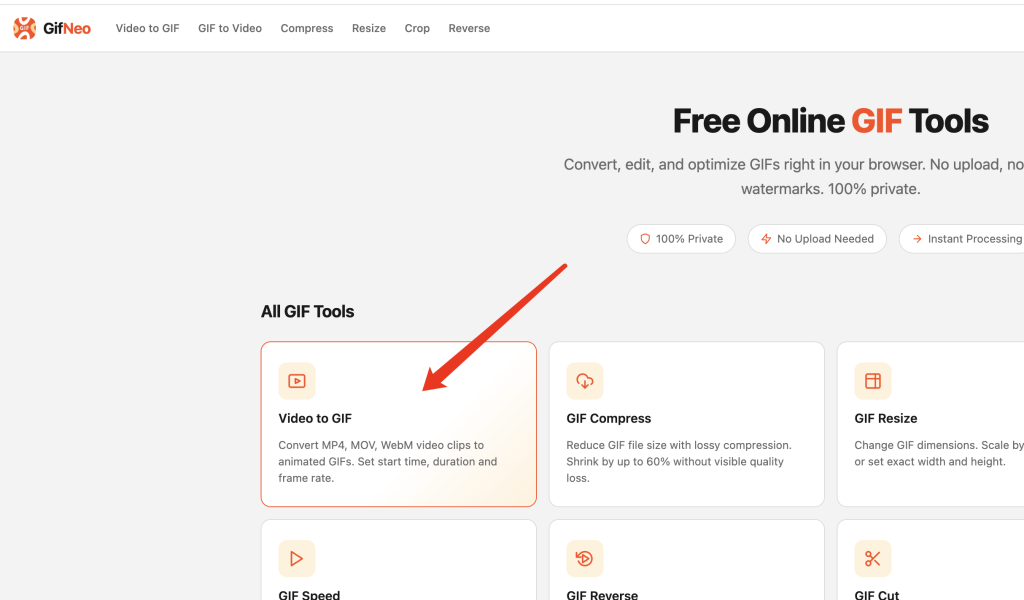
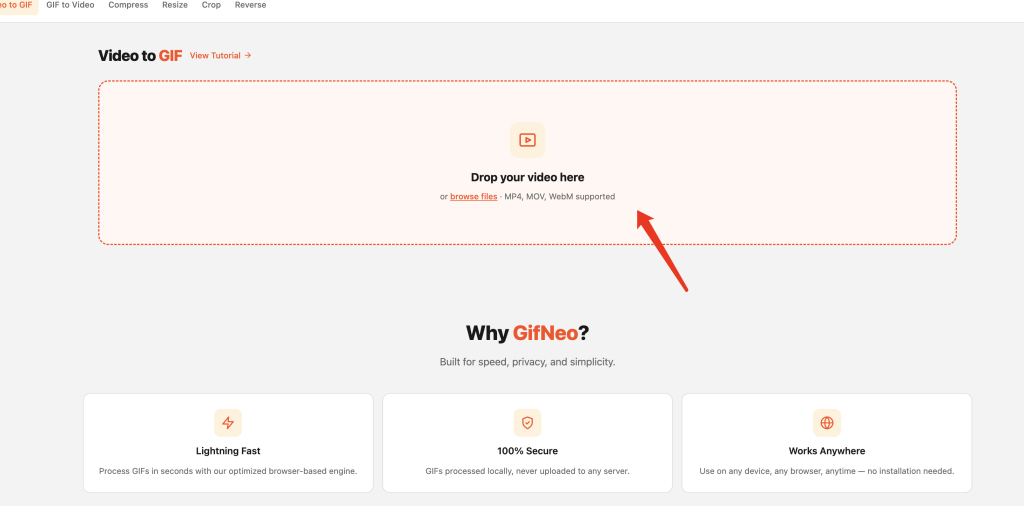
Step 1: Upload Your Video
Open the Video to GIF tool and click the upload area, or drag and drop your video file. Supported formats include:
- MP4 (most common, works on everything)
- MOV (iPhone/iPad recordings)
- WebM (smaller files, good for web)
- AVI and MKV (some browsers)
There’s no size limit set by us, but keep in mind that longer videos will produce longer GIFs, which can balloon to huge file sizes. For best results, trim your video to the interesting part first.
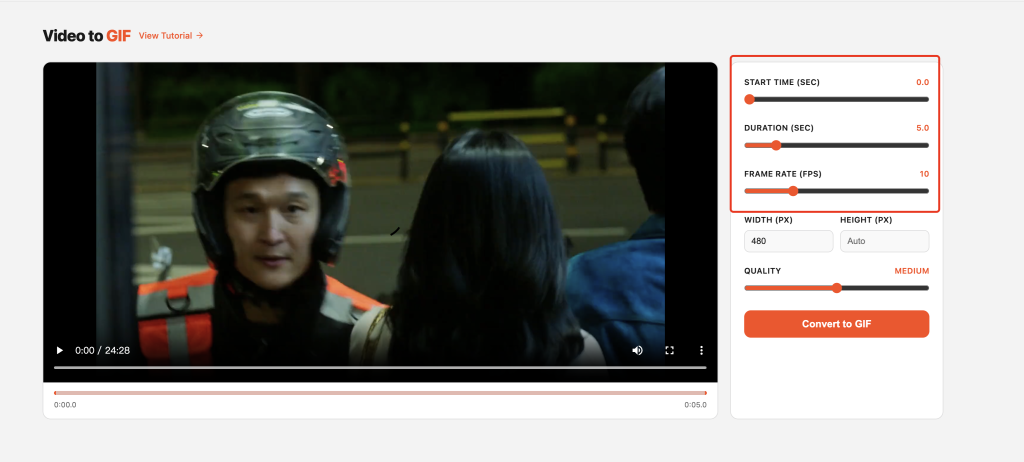
Step 2: Set the Start and End Time
Once your video loads, you’ll see a preview player with two sliders. Drag them to pick exactly which segment you want to turn into a GIF.
Pro tip: GIFs work best at 2-6 seconds. Any longer and they get massive in size, slow to load, and nobody’s going to watch the whole thing anyway. Pick the punchline, the reaction, the loop point — the moment that makes the GIF worth sharing.
Step 3: Adjust Quality and Convert
You’ll see two main controls:
- Frame rate (FPS) — 10-15 FPS is the sweet spot. Higher looks smoother but bigger file. Lower looks choppy.
- Width — Resize the output. 480px is great for messaging apps, 720px is good for Twitter/Reddit, 1080px if you need it crisp on retina screens.
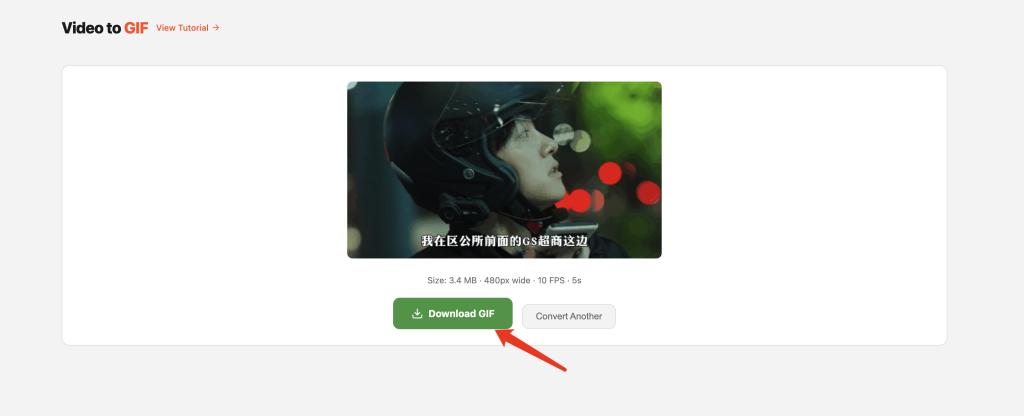
Click Convert to GIF and wait a few seconds. When it’s done, click Download and you’ve got your GIF.
How to Make a Good GIF (Not Just Any GIF)
A bad GIF is a GIF nobody shares. Here’s what makes the difference:
Shorter is better. A 3-second GIF that loops perfectly beats a 10-second GIF every time. Find the loop point — the frame where it can restart without a visible jump.
Skip the audio. GIFs don’t play sound, so if your source video has talking, music, or noise, that’s wasted data. Cut from a moment that doesn’t need audio context.
Match the frame rate to the content. A face talking needs 15+ FPS to look natural. A screen recording with text can do 8-10 FPS and still be readable. A simple animation loop can drop to 6-8 FPS.
Watch the file size. Twitter caps at 15MB for animated GIFs. Discord is around 10MB. If your GIF is bigger than that, drop the width, reduce the FPS, or trim it shorter. There’s no point in a GIF nobody can upload.
Common Use Cases
- Reaction GIFs — Pull a 2-second clip from a show or movie for group chats
- Tutorial snippets — Show a software interaction in 3 seconds instead of writing paragraphs
- Bug reports — A GIF is faster to read than “click here, then wait, then scroll”
- Product demos — Embed in a tweet, no YouTube link required
- Memes — The classic. You know what you’re doing.
FAQ
Is the Video to GIF tool really free?
Yes, completely free. No trial, no premium tier, no signup. GifNeo runs zero-server tools, so there’s no infrastructure cost to recover.
Do my videos get uploaded to a server?
No. The whole conversion happens in your browser using JavaScript. Your video file is processed locally and never leaves your device. You can verify this in your browser’s network tab — you won’t see any upload requests.
What’s the maximum video length?
There’s no hard limit, but in practice, anything over 30 seconds will produce a GIF that’s too large to share anywhere useful. Stick to 2-10 seconds for best results.
Why is my GIF file so big?
GIF is a notoriously inefficient format — it stores full frame data instead of changes between frames. Three things affect size: length, dimensions, and frame rate. Trim shorter, resize smaller, or drop the FPS to reduce it.
Can I edit the GIF after converting?
Yes. Use our Compress GIF, Resize GIF, or Crop GIF tools to fine-tune the result.
Does it work on mobile?
Yes, the tool works on iOS Safari, Chrome for Android, and other mobile browsers. Performance is slower than desktop for large videos, but it gets the job done.
Wrap Up
Converting video to GIF doesn’t need to be a 20-minute project with paid software. GifNeo does it in your browser in under a minute, with full privacy and zero cost.